
















When someone uses a mouse or laptop, it may show that their mouse is sometimes double-clicking, which creates a problem for the individual to do their job. It becomes very irritating when you try to open a new file, select something, or browse the internet.
The good news is that you don’t need to buy a new mouse. Sometimes, you can fix the problem with a simple setting change or minor adjustment. Once you learn how to resolve it, you’ll be surprised at how simple the solution actually is.
In this guide, I will show you how to fix the mouse double-clicking issue most easily.
Why Is My Mouse Double-Clicking When I Click Once?
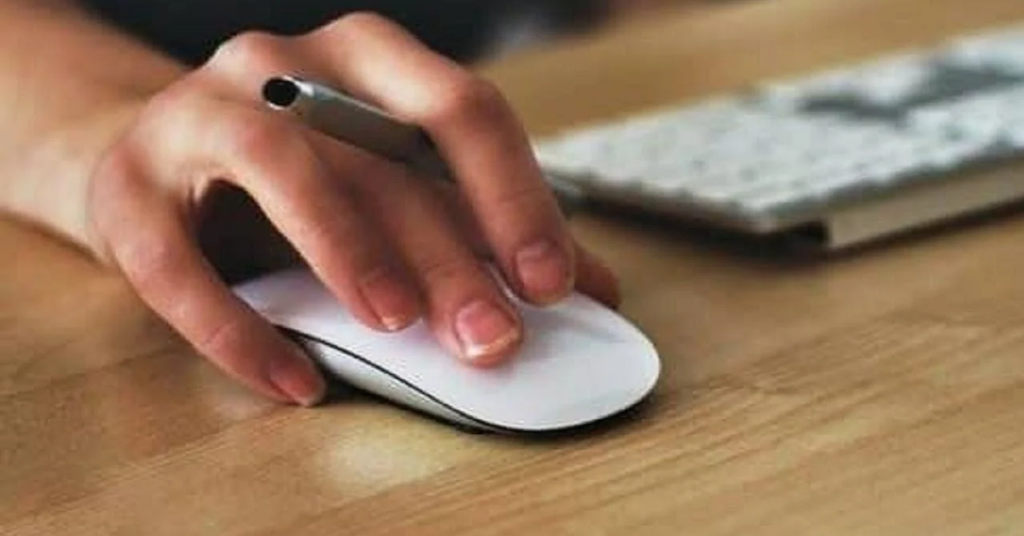
Many issues can cause a mouse to double-click, such as:
- Worn Microswitch: It is an internal switch that provides multiple signals due to the wiring.
- Incorrect double-click speed: The reason in Windows settings is that the clicks sometimes feel unusually sensitive.
- Dust or Debris: Dirt around the mouse button also triggers the mouse movement.
- Dirt around the mouse button impedes its movement.
- Wireless Interference: A weak battery or a slow/unstable connection also creates the issue of mouse double-clicking.
Identify main cause so it will help you to solve the problem.
How to Test If Your Mouse Is Double Clicking
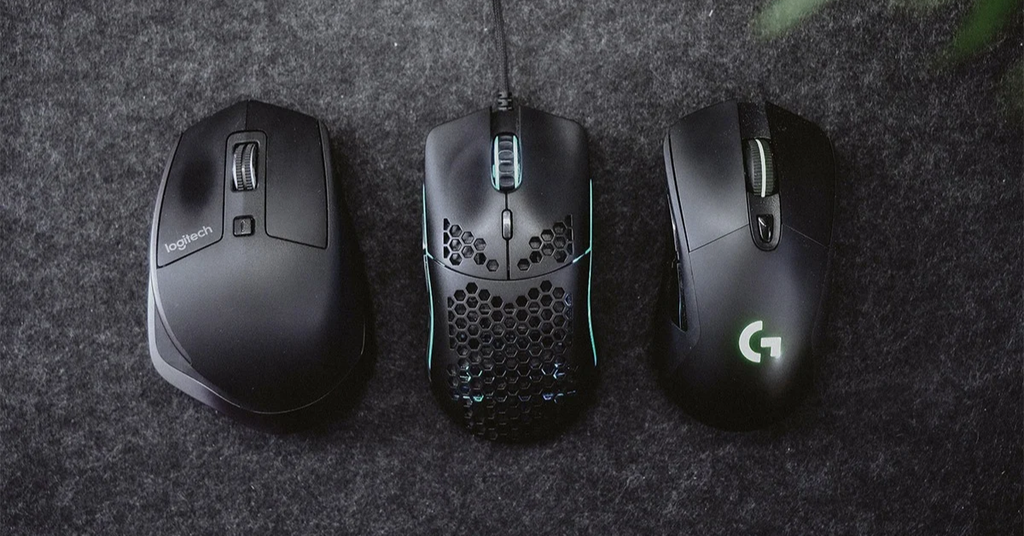
Before taking any decision, check whether the actual issue is with the mouse. Here’s how you can test:
- Use the online mouse click tester on your computer or laptop.
- Click your mouse once and see how the website registers it.
- Try to click many times, but keep gaps between those clicks.
- If a single press is registering as a double-click, it means there is an issue with your mouse button or its hardware.
You can also try your mouse on a different computer; if it doesn’t work, it means there is a fault in the mouse.
How to Fix Mouse Double Clicking (Method)

Try these eight solutions in order, testing your mouse after each step to see if the issue has been resolved.
1. Adjust the Double-Click Speed
Windows lets you adjust settings for the mouse double-clicking issue:
- Open Settings > Bluetooth & devices > Mouse on Windows.
- Select Additional mouse settings and open the Buttons tab.
- Adjust the Double-click speed slider.
- Click Apply or OK, then test your mouse.
2. Clean the Mouse Buttons
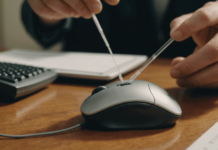
Dust around the mouse buttons causes clicking problems. To clean your mouse:
- Disconnect or turn it off.
- Wipe the mouse and surface with a clean, dry cloth.
- Dry both completely before reconnecting.
3. Check the USB Port or Wireless Connection
The wired mouse has been unplugged; reconnect it to another USB port. For a wireless mouse, change or recharge the battery. For a bluetooth mouse, disconnect the device and pair it again.
4. Update or Reinstall the Mouse Driver
Sometimes, due to the driver, your mouse malfunctions. To check, right-click the Start button, open Device Manager, and update the driver for your mouse.
If the problem occurs continuously, uninstall the mouse device, restart your PC, and install the mouse device.
5. Check File Explorer’s Single-Click Setting
First, open File Explorer, then the three-dot menu, then Options. Select Double-click to open an item (single-click to select), then click Apply and OK. Now test mouse to see if the issue is fixed.
6. Restart Your Computer and Check for Software Conflicts
Now restart your PC and test the mouse before opening any apps. If the problem occurs, check for official software and other updates.
7. Reset the Mouse Settings
Open mouse settings and change the double-click speed. Check the button settings and make one change at a time to identify the issue.
8. Test the Mouse on Another Computer
Connect the mouse to another PC and check it. If same problem occurs in other device its mean there is a problem with the mouse. But if it work correctly its means there is issue in your PC and fix the problem.
How to Fix Mouse Double Clicking on Windows 11 and Windows 10
Press Windows + R and then type main.cpl and press Enter in case the user is running Windows
10 or Windows 11. Next, click on the Buttons tab. A double click speed slider will appear.
Make a change, test the folder symbol next to the change. Also, navigate to File Explorer
Options and ensure that there is a tick beside double click to open files.
How to Fix Logitech or Razer Mouse Double Clicking
If using a Logitech mouse, launch Logitech G HUB or Options+. On Razer, there is a tool that
can be used called Razer Synapse.
See button settings and firmware upgrades available. Changing custom settings may occasionally
be helpful. However, if the swapping of the same issue occurs in another computer, then the
problem may be in the switch as it is defective.
How to Fix a Mouse With a Faulty Microswitch
A microswitch in your mouse is a small device that sends an action to your computer whenever
you click your mouse. One press can register twice when it becomes old and damaged.
This switch can be replaced, but may need to be soldered. It’d be better if you never repaired
electronics; you may have to get professional assistance.
Should You Repair or Replace a Double-Clicking Mouse?
If you have a mouse that is low cost and many years old perhaps a better purchase is in order.
The replacement on this type of switch can be cost-saving, provided one has an expensive
gaming mouse.
If you’re considering making a purchase, make sure your mouse is still covered by a warranty.
FAQs
Can dust cause double clicking?
Yes, the mouse button sometimes is affected by dust.
Can software fix a damaged switch?
Not permanently. If one of these switches is broken, it will typically require replacing.
Does restarting help?
Occasionally, particularly if they are due to software.
Final Thoughts
Now that you know How to Fix Mouse Double Clicking, don’t replace your mouse
immediately. First, clean, adjust settings and change the US port. These simple things may help
you to resolve your issues.
If all fail, try it on a different computer. After you find out what the issue is, then it will be far
easier for you to check on how to fix your mouse.